workspace, mapped and booked
Your office organised
Locarium makes it effortless to book desks, meeting rooms, and resources. See who's in the office, coordinate with your team, and never fight over a hot desk again.
Good morning, Lisa
Tuesday, April 14, 2026
D-01
Quick actions
Recent activity
Inside Locarium
A booking, end to end
Every step a colleague takes, from choosing a day to checking in on arrival.
When do you need the space?
Step 1 of 3 · When
From
09:00
To
17:00
Step 1 of 5: Pick your day. Choose the date and the hours you need. Highlighted in the dashboard: Quick actions: Book a desk.
Everything you need to manage your workspace
From booking a desk to coordinating with your team, Locarium has you covered.
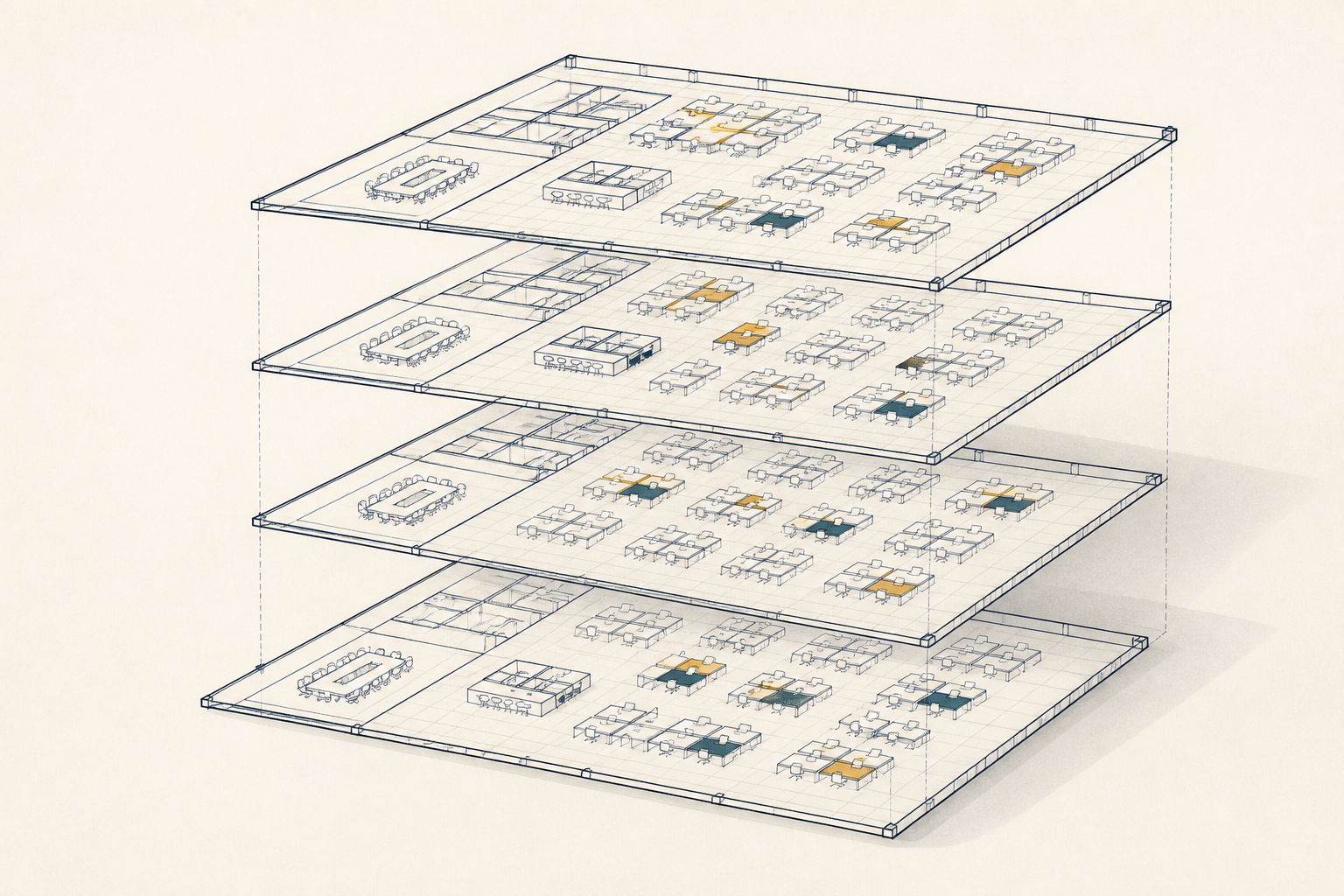
Interactive floor maps
See your entire office at a glance with color-coded desk and room availability.
One-click booking
Reserve a desk in seconds with smart defaults and instant confirmation.
Team coordination
See where your teammates are sitting and plan office days together.

How it works
Three simple steps to a better office experience.
Browse available spaces
Explore your office floor map or calendar to find the perfect desk, room, or resource for your day.
Book in seconds
Select your preferred spot, pick a time, and confirm — it's that simple. Recurring? We've got that too.
Check in & get to work
Arrive at the office, check in via QR code or one tap, and you're all set. No-shows get auto-released.
Model Context Protocol
Locarium supports MCP
Locarium speaks the Model Context Protocol, the open standard AI assistants use to work with real systems. That means your workspace can be read and booked from an assistant such as Claude, without anyone copying data out of Locarium.
Read your estate
An assistant can list your organisations, the estate hierarchy (region, country, city, building, floor) and every desk, room, parking bay, locker or EV connector.
Book by conversation
Ask for a desk near your team on Tuesday morning, or an EV connector for your registered vehicle, and the booking is created for you.
Signed in as you
Access is granted through OAuth: you approve the assistant on a consent screen, and it then acts strictly with your own permissions.
Same rules, no shortcuts
Booking windows, minimum session lengths, maintenance states and tenant isolation are enforced server side, exactly as in the app.
How it works with Claude
- 1In Claude, open Settings and go to Connectors.
- 2Add a custom connector and paste your Locarium workspace address.
- 3Sign in to Locarium and approve the connection on the consent screen.
- 4Ask Claude for availability or a booking; it uses only what your role allows.
Step by step connection instructions for ChatGPT, Claude, Claude Code and other assistants.
Other MCP capable assistants connect the same way. Nothing is exposed publicly: an assistant sees only the organisations and resources your signed-in account can already see, and every action is recorded as yours.
Frequently asked questions
Everything you need to know about Locarium.
Ready to transform your workspace?
Join teams already using Locarium to organise their office. Start for free: no credit card required.
Get started free